PDF Viewer: Read, Scan & Edit
OCEAN FEATHER TECHNOLOGY INCProductivity
4.49.00 Reviews
- Version
- 1.1.1
- Installs
- 100.00K
- Age Rating
- Everyone
Screenshots
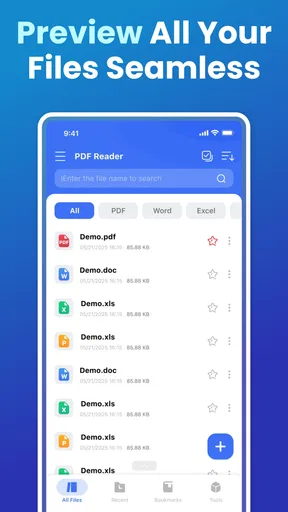
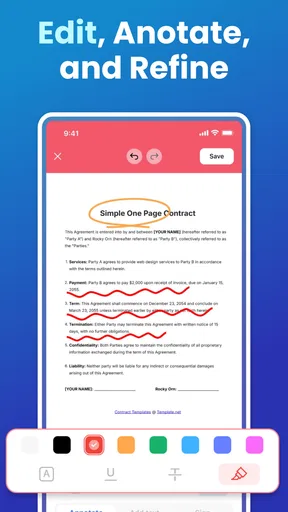
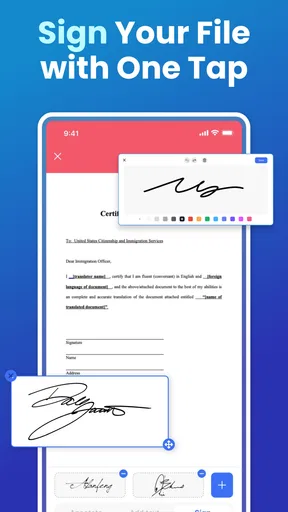
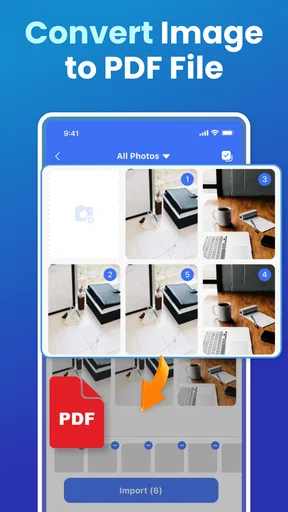
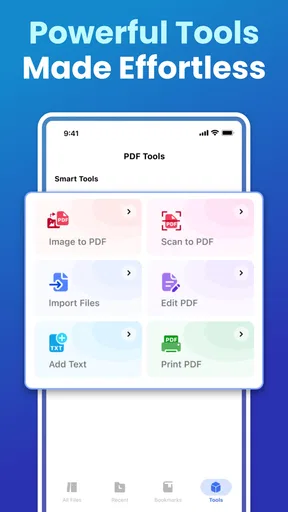
Our Review of PDF Viewer: Read, Scan & Edit
 Analysis by Appyee
I tested PDF Viewer: Read, Scan & Edit as the sort of practical productivity app that earns its place on a shared phone or tablet. Its purpose is straightforward: help with viewing and processing PDF documents without turning a simple reading task into a complicated office project. That focus is useful in a household where one device may move between work, school, appointments, and everyday paperwork.
My first impression was that this is best understood as a focused document utility, not a complete replacement for every office application. The developer, OCEAN FEATHER TECHNOLOGY INC, presents it as a PDF viewer, and that narrow identity matters. If you mainly need to open documents, inspect them, scan paper material, or make practical adjustments, the app has a sensible role. If you expect a full document-management suite with extensive collaboration tools, you should approach it with more modest expectations.
The app is free, carries an Everyone age rating, and runs on Android devices using version 8.0 or later. It currently appears as version 1.1.1, with an average rating of 4.4 from around two hundred ratings. Those details make it approachable for mixed-device households, especially when an older spare phone or tablet is still in regular use.
How PDF Viewer fits into shared household routines
I find a shared household routine works best when everyone agrees on what happens to a document after it is opened or scanned. One person can take responsibility for checking the result and handing it off, rather than leaving the next user to guess whether the file is ready. That simple division of roles also makes it easier to decide which documents belong on a communal device and which should stay private.
One device, several document jobs
A realistic shared-device example is a family tablet kept near the kitchen or home office. One person opens a school handout, another checks a rental document, and someone else scans a receipt or form. In that situation, a dedicated PDF tool is less distracting than a large office suite. You can open the document you need, complete the immediate task, and return the device without adding another general-purpose account or workflow.
I also see value for households that keep a spare Android device for occasional paperwork. A PDF viewer can turn that device into a small document station: read an attachment, inspect a page before sending it, or process a paper document when a computer is not nearby. The practical advantage is not that it replaces a desktop; it is that it reduces the number of times you need one.
There is a useful distinction between reading a document comfortably and managing a document library. The former is where this app makes the most sense. For a person who receives PDFs through messages, downloads them from a browser, or opens them from local storage, a focused viewer keeps the task understandable. For a household that needs shared folders, detailed permissions, synchronized annotations, or a central archive, a cloud-storage service or full office platform may be a better foundation.
A simple workflow for paper and digital files
My preferred household workflow would be to keep the original paper nearby, scan it only when a digital copy is useful, review the resulting PDF carefully, and then decide where it belongs. That last step is important. Scanning is not the same as organizing. A document can be successfully turned into a PDF and still become difficult to find later if the household has no naming or storage habit.
A practical naming pattern helps: use the document type, person or household area, and month in plain language. For example, a school permission form or appliance receipt becomes easier to identify than a generic camera-generated filename. This is not a special feature of the app; it is a habit that prevents confusion when several people use the same device.
Another useful tip is to review every scanned page before treating the file as finished. Paper edges, shadows, upside-down pages, and partially captured text are easy to overlook on a small screen. A quick page-by-page check is especially worthwhile for forms, identification documents, and anything that another person will rely on.
Where the shared-device idea becomes less comfortable
The convenience of a common tablet has a privacy trade-off. A PDF may contain school information, medical paperwork, financial records, travel documents, or personal correspondence. A household should not assume that a shared device automatically creates separate private spaces. Before handing the device to another person, I would close the document and review the recent-file area or file browser so the next user does not casually see sensitive material.
I would also avoid treating a shared device as a permanent archive unless the household has deliberately chosen that arrangement. A lost tablet, accidental deletion, or simple confusion over ownership can make an important document difficult to recover. The app can be useful for processing, but the long-term storage decision belongs in a broader household system.
Setup boundaries before anyone starts scanning
Because this is a productivity app used around personal documents, setup should begin with clear boundaries rather than immediately importing everything. Decide who is allowed to use the device, which kinds of documents may be opened there, and where completed files should go. These rules are more valuable than a vague assumption that everyone will remember what is private.
For a family tablet, I would create a short routine: the person using the app opens only the needed file, avoids leaving documents visible on the screen, and removes temporary copies when they are no longer required. If the device belongs to one person but is occasionally shared, the owner should remain responsible for reviewing stored files and downloads.
It is also worth checking the Android version before planning a household rollout. The app requires Android 8.0 or later, so it is not suitable for every very old device. On compatible hardware, the current version is 1.1.1, which is the release I would look for when checking whether a device is ready. Keeping the app updated is sensible, but I would still test the actual household workflow with a harmless sample document first.
Account boundaries and handoffs
A shared device becomes awkward when people confuse the app with an account system. The safest approach is to separate the document task from personal identity. Do not assume that opening a PDF creates a private user area, and do not hand over a device while a personal document is still open. If a document needs to be sent onward, the person responsible for it should perform that action rather than leaving the next user to guess what should happen.
This matters for couples, roommates, and families alike. A shared tablet may be physically communal while the documents remain personal. A simple verbal handoff—“the scanned form is finished; the original is still on the table”—can prevent duplicate work and misplaced paperwork. For children, an adult should decide which documents are appropriate to open and whether a scan should remain on the device.
I would not use one communal device for confidential documents merely because the app is convenient. A private phone or computer is usually the better choice for material that should not be seen by other household members. PDF Viewer can support a shared workflow, but it does not remove the need for ordinary privacy judgment.
Coordinating documents without overcomplicating the home
The app is most helpful when the household agrees on what “finished” means. Is a document finished when it has been opened, when it has been scanned, when it has been checked for legibility, or when it has been placed in its final storage location? These are different stages, and confusion between them causes many everyday document problems.
For example, one person might scan a warranty receipt and assume the job is complete, while another person later discovers that the file has an unhelpful name and cannot be found. A better sequence is to scan, inspect, rename if needed, move or share the file, and then remove any unnecessary temporary copy. This workflow uses the app for what it does best while leaving household organization explicit.
When several people handle paperwork, I recommend keeping a small list of outstanding tasks outside the app. The list might say that a form still needs a signature or that a receipt must be sent to a particular person. The PDF itself should not be expected to communicate the entire state of a household task. This separation prevents a processed document from being mistaken for a completed responsibility.
Reading is not the same as editing
The name suggests reading, scanning, and editing, but those words cover very different expectations. Viewing a PDF is usually immediate. Scanning involves capture quality and page order. Editing can mean anything from basic adjustments to changing text, rearranging pages, filling forms, or adding annotations. I would judge the app primarily as a convenient document utility and test any important editing job before relying on it.
That caution is especially relevant for official forms. If a document must preserve exact formatting, support a particular signature process, or remain compatible with a professional workflow, a desktop PDF editor may be safer. A mobile app is excellent for quick inspection and practical processing, but a small screen can make precise document work slower and easier to get wrong.
One non-obvious trade-off is that scanning on the same device used for reading can save time while also encouraging rushed checking. The convenience invites people to capture a page and move on. I would slow down for multi-page paperwork, confirm the order, and inspect small print before sharing the result. That extra minute is often more valuable than the time saved by avoiding a computer.
Age context and trust
The Everyone rating makes the app suitable in a broad age context, but an age rating is not a substitute for document guidance. A child may be able to open the application, yet still need an adult to explain which files are private, which documents may be scanned, and where a finished file should be sent. The app can be easy to access while the information inside it remains sensitive.
For older relatives, the focused purpose may be easier to explain than a large office suite. I would show one complete routine: open a file, adjust the view for comfortable reading, return to the document list, and close the app when finished. If scanning is part of the routine, I would practice with a non-sensitive page first. Familiarity with the sequence matters more than adding every possible document task at once.
Trust also depends on the person, not only the software. A shared device should be used by people who understand that opening, renaming, moving, or deleting a document can affect someone else. If a teenager uses the tablet for school files, for instance, the household should agree on whether those files remain on the device or are transferred elsewhere after submission.
How it compares with the usual alternatives
The usual alternative is a general office suite. That option is stronger when the work involves creating and revising text documents, spreadsheets, presentations, or team files. It may also fit better when a household already has an established cloud workflow. The downside is extra complexity for someone who only wants to open a PDF or check a scan.
Another alternative is a browser-based viewer or the basic PDF handling already built into a phone. Those tools can be enough for occasional reading, particularly when no scanning or processing is needed. A dedicated app becomes more attractive when PDF tasks happen regularly and the household wants one recognizable place to handle them.
Specialized professional PDF editors are the better choice for advanced form work, detailed annotations, precise page management, or business-critical documents. They can be excessive for casual household use, but their deeper controls may justify the change when accuracy and repeatability matter more than simplicity.
My trade-off assessment is therefore clear: choose this app for a focused mobile document routine, not because it promises to replace every other tool. Its usefulness rises when the alternative is repeatedly searching for a viewer, switching between unrelated apps, or using a computer for a small task. Its usefulness falls when the household needs robust collaboration, structured archives, or professional editing control.
Who will benefit most from the free model
Being free removes an obvious barrier for households that want to try a PDF workflow without committing money first. That makes it practical for a spare device, a student’s occasional paperwork, or a family member who only opens documents from time to time. The broad Everyone rating also makes it easier to consider for mixed-age use, provided the household still sets privacy expectations.
Free does not automatically mean frictionless, though. The real test is whether the app fits the way you already receive and store files. If your documents arrive through several services and end up scattered across different locations, the viewer may solve only the opening step. I would install it, use a few representative documents, and then decide whether it genuinely simplifies the routine.
The app has passed the hundred-thousand-install mark, so it is not an obscure experiment with no visible adoption. Its rating of 4.4 is encouraging, but I would treat that as a starting signal rather than proof that every household workflow will feel the same. Document habits vary widely, especially when one device serves several people.
My household verdict
After looking at the app through a shared-device lens, I see PDF Viewer: Read, Scan & Edit as a sensible choice for straightforward document handling on a compatible Android phone or tablet. I like the focused role: it can sit between paper and digital storage, help a family inspect a file, and make occasional scanning less dependent on a computer.
I would recommend it to a household that can agree on basic boundaries: do not leave private files open, check scans before sharing, keep important originals or backups in an intentional place, and distinguish a processed document from a completed task. Those habits make the app more useful and prevent its convenience from creating new confusion.
I would suggest a different option for anyone who needs a full collaborative office environment, precise professional editing, or a dependable shared archive with detailed access control. In those cases, a broader platform is worth the additional complexity. For everyday PDF viewing and practical mobile processing, however, the best reason to choose this app is its focused, low-commitment role in a real household routine.
My final advice is to start with a harmless sample file rather than sensitive paperwork. Try opening it, scanning a page, checking the result, and completing the handoff to whoever needs it. If that sequence feels natural on your device, this free productivity app is likely to be a useful addition. If the household still struggles to tell where files live or who is responsible for them, solve that coordination problem first; no PDF viewer can replace a clear document routine.
Verdict
Strengths of PDF Viewer: Read, Scan & Edit
- Opens PDFs quickly, even when switching between several stored documents.
- Search results are easy to spot and navigate through within long files.
- Supports organizing documents into folders for simpler file management.
- Useful annotation tools make reviewing contracts and notes more convenient.
- Can scan paper pages into digital documents directly from a mobile device.
Limitations of PDF Viewer: Read, Scan & Edit
- Some advanced editing tools may require a premium subscription.
- Large scanned PDFs can take noticeable storage space on your device.
- OCR accuracy may vary with handwriting, shadows, or low-quality pages.
- The interface can feel crowded when many editing options are displayed.
- Battery usage may increase during repeated scanning or document conversion.
Other Releases by OCEAN FEATHER TECHNOLOGY INC
View All
All-in-One PDF & Docs Reader
Productivity3.7
Similar Picks in This Category
View All
Google Calendar
Google LLC4.6

Google Drive
Google LLC4.3

Google Assistant
Google LLC3.9

Microsoft OneDrive
Microsoft Corporation4.6

Samsung Calendar
Samsung Electronics Co., Ltd.4.1

Microsoft OneNote: Save Notes
Microsoft Corporation4.6
Frequently Asked Questions
What is PDF Viewer: Read, Scan & Edit used for?
PDF Viewer: Read, Scan & Edit is designed to help you manage PDF documents from a mobile device. After testing its main tools, I found it useful for opening files, reading documents, scanning paper pages, and making basic edits or annotations. It can be convenient for students, office workers, and anyone who regularly receives PDFs through email or messaging apps.
Can PDF Viewer: Read, Scan & Edit scan paper documents into PDF files?
Yes, the app includes scanning functionality that lets you use your phone’s camera to capture printed documents and convert them into digital files. In practice, the final quality depends on lighting, camera focus, and how flat the page is. It works best for receipts, notes, forms, and short documents, although very complex layouts may require some manual adjustment.
Does the app allow users to edit and annotate PDF documents?
PDF Viewer: Read, Scan & Edit provides tools for making common changes to PDF files, such as adding notes, highlighting text, drawing, or inserting basic elements, depending on the version available on your device. These features are useful for reviewing contracts, marking study material, or completing simple paperwork, but it should not be treated as a full desktop publishing editor.
Is PDF Viewer: Read, Scan & Edit free to download and use?
The application may be available as a free download, but some advanced tools can be restricted behind in-app purchases or a subscription. Before installing, check the current Google Play Store or Apple App Store listing for pricing, trial conditions, advertisements, and premium limitations. This is especially important if you need exporting, advanced editing, or unlimited scanning regularly.
Is PDF Viewer: Read, Scan & Edit safe for private documents?
The app can be useful for handling personal files, but you should review its privacy policy and requested permissions before scanning sensitive documents. Avoid uploading confidential identification, financial records, or work files unless you understand how the app stores and processes them. Keeping the application updated and downloading it only from the official store are also sensible security precautions.
